Shown below is the view of the Planning sub-tree with all subcategories. Click on the image to see how to navigate the various categories and interaction activities in the UAF.
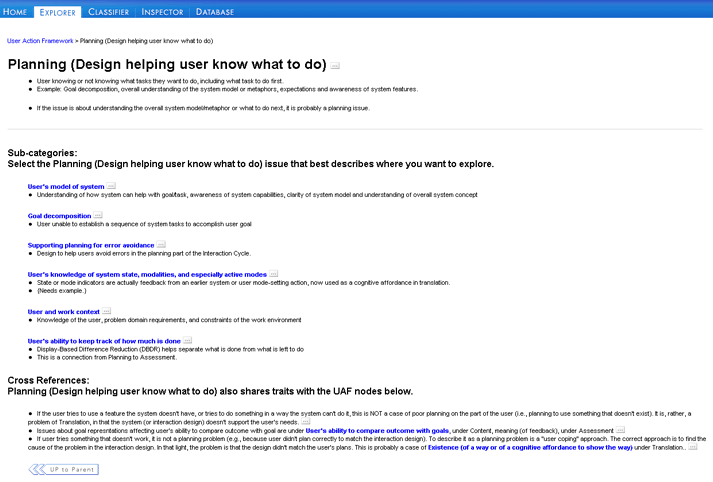
Training Tool for the User Action Framework Explorer
Planning is about user knowing or not knowing what tasks they want to do, including what task to do first. planning has a number of subcategoris under it that we will see in this module.
Introduction
In the following cases identify whether or not the scenarios belong to the Planning interaction activity at the highest level and click on the appropriate choice
1. While performing a task a user clicks on a button and gets an error message, but the error message is not readable.
2. This is an example of good design rather than a usability problem. Software helps user start off on a task by presenting choices of all that can be done using that s/w and asking user to click one of them to begin.
3. A user has used a command-line-based text editor and has problems finding out what to do in a GUI platform editor.
Planning sub categories and lower levels
The UAF is structured in multiple levels. While the interaction activities form the highest level,the lower levels under each interaction activity are known as subcategories.
The categories under the planning interaction activity are explained below.
The users model for the system is the mental model the user forms of the system. This, to the user establishes an understanding of how system can help with goal/task, awareness of system capabilities, clarity of system model and understanding of overall system concept. The system components that are representative of forming the users model of the system include metaphors.
E.g: Using the metaphor of a real paper calendar in an appointment management system would give the user a fair idea of the kind of tasks that can be done and associate how they are done in the real world with how they could be done using the system..
Goal decomposition deals with the user's inability to establish a sequence of system tasks to accomplish user goal. This category is further split into subcategories that are self-explanatory.
- User unable to establish sequence of tasks to accomplish goal
- Matching users conception of high level task organization
- Users ability to determine what to do first
- Users ability to determine what to do next
- Supporting human memory limitations
Design to help users avoid errors in the planning part of the Interaction Cycle.
Knowledge of the user, problem domain requirements, and constraints of the work environment all are included under the users planning to complete a task.
Shown below is the view of the Planning sub-tree with all subcategories. Click on the image to see how to navigate the various categories and interaction activities in the UAF.
 Go back to the open UAF Explorer window and explore the subcategories under
Planning as they were explained above.
Go back to the open UAF Explorer window and explore the subcategories under
Planning as they were explained above.
Let us now explore one classification
example from the highest level to the lowest level of the planning subtree.
Example: User doesn't understand
Master Document feature
User knows generally that the Master Document feature of Word is used to allow
treating several chapters in different files as a single document (e.g., for
global editing). She wants to use this for her multiple thesis chapters, but
the system doesn't help her figure out what she can do with it or how it might
help her with her task. She has
not yet done anything with it.
Solution: User Action Framework > Planning (Design helping user know what to do) > User's model of system>User awareness of overall application concept,system features
Explanation: The issue with this example is that the system she is using does not match the model the user has in her mind in any way. The problem is about the user simply not knowing enough about the application to be able to do anything.. Hence the classification path would be as shown above.
Click here to see how the classification is actually done in the Explorer tool. ( Windows Media player required. File size: 1.05 MB)
Review of concepts
Planning is concerned with the user's ability to understand the overall computer application in the perspective of work context. Planning is subdivided into Goal decomposition and users model of the system and 3 other subcategories.
Practice Exercises
Attempt the following cases and find what sub-category under planning do each of these examples best represent. Try classifying all the way down to the nodes. When classifying remember to carefully read all alternatives and select the best or most specific one. Do not classify impulsively.
1. This is an example of good
design, rather than a usability problem. Using a certain spreadsheet program,
a user has created a spreadsheet table that is taller than it is wide. When
she requests it to be printed, she gets an informative message in a dialogue
box that says: "This will require 2 pages to print in the current Landscape
page orientation setting. If you use a Portrait orientation, it will require
only 1 page to print. If you wish to change the orientation setting before printing,
click on Cancel." The user found this most helpful, saving the time and
paper involved in printing it wrong the first time, making the change, and printing
again.
Use the UAF Explorer to classify
the above. The solution, i.e the classification path would be what is
on the top after you have classified all the way down to the lowest level.
Click here for solution and explanation.
2. Marked for deletion
While using a personal document retrieval system, a user wanted to delete the
document record for document number 123. She selected the document and clicked
on a button labeled Delete. A message came back saying: "Document 123 marked
for deletion." In addition, another button appeared, labeled "Unmark
document for deletion". The user was confused and did not know how to proceed,
because she had asked simply to delete the document record and the system was
talking about "marking for deletion", which seemed to be a somewhat
different thing. The problem stems from the user not being aware of the model
of how record deletion works in the underlying database system. "Deleted"
records are only marked for deletion and can be "undeleted" by simply
removing the marks. A separate function is invoked to accomplish permanent deletion
of all marked records, batching the actual record deletion operations.
Use the UAF Explorer to classify the above usability problem. The solution, i.e the classification path would be what is on the top after you have classified all the way down to the lowest level.
Click here for solution and explanation.