Extending classes
The first thing to do is to define classes. This is done by extending
primitive classes or your own classes. When the user clicks on a class
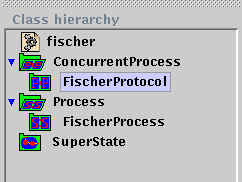
in the class hierarchy (fig. 1), he will have the the corresponding class
in the main panel and the possibility to extend this class by using the
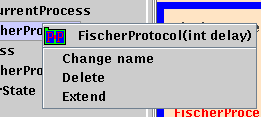
popup menu (fig. 2) of the class or the extend button in of the tool bar
(fig. 3).
|
|
|
| figure 1 : class hierarchy panel | figure 2 : class popup |

figure 3 : concurrent process toolbar with the extend button
The classes Process and SuperState have different enabled buttons, but the principle is the same.
Composing your system
Inside your composite object, you may add states and transitions (SuperState
and Process objects), and other classes with respect to the composition
rules given in the introduction
to UL++ . This is done with the compose button, to
the left of the extend button. If you try a forbidden composition,
then you will get an error message. The composition may be forbidden for
two reasons:
The virtual state concept
A virtual state is a state, a superstate or an entry, exit on a superstate.
This abstraction allows us to simplify the transition and connection definitions
: a transition is defined between two virtual states and a connective is
defined on a virtual state. When you are editing a superstate class, then
you may define entry and exits on such virtual states. In a process you
may define one initial state (requested for the instanciation) to a virtual
state. You have to be carefull when dealing with connectives (entries and
exits) because something is always to an entry and from an
exit.
Instanciating your system
This is done by pressing the instanciate button in the popup
menu of your system definition, in our example, called fischer.
You have to put one component there, it is like the system has one composite
object as a member. The instanciation may fail if you do not have an initial
state in every process, or a connective is missing... appropriate message
will warn you.
Once you have your instance, you may navigate through your system by
two means :
 |
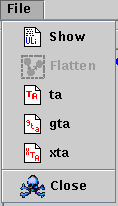 |
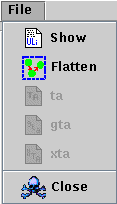
| figure 4 : file menu before flattening | figure 5 : file menu after flattening |
These options are only available in the first (root) instance window,
since it contains the system definition. The other windows, when opening
a sub component are the same but do not have these functionalities.
The different functions available are :
We conclude this short introduction by two overviews : the class
editor window and the instance window.
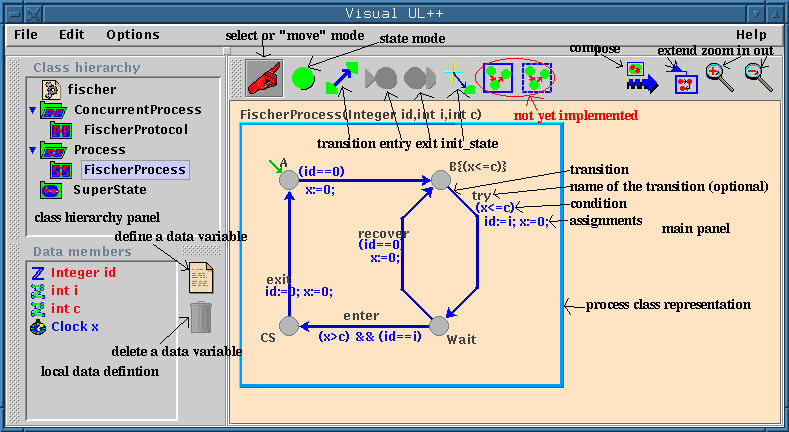
class editor window overview
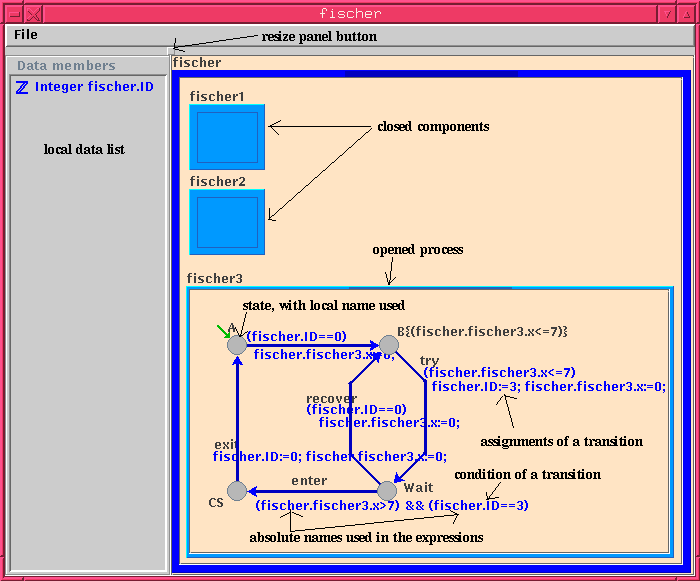
instance window overview
 Back
Back